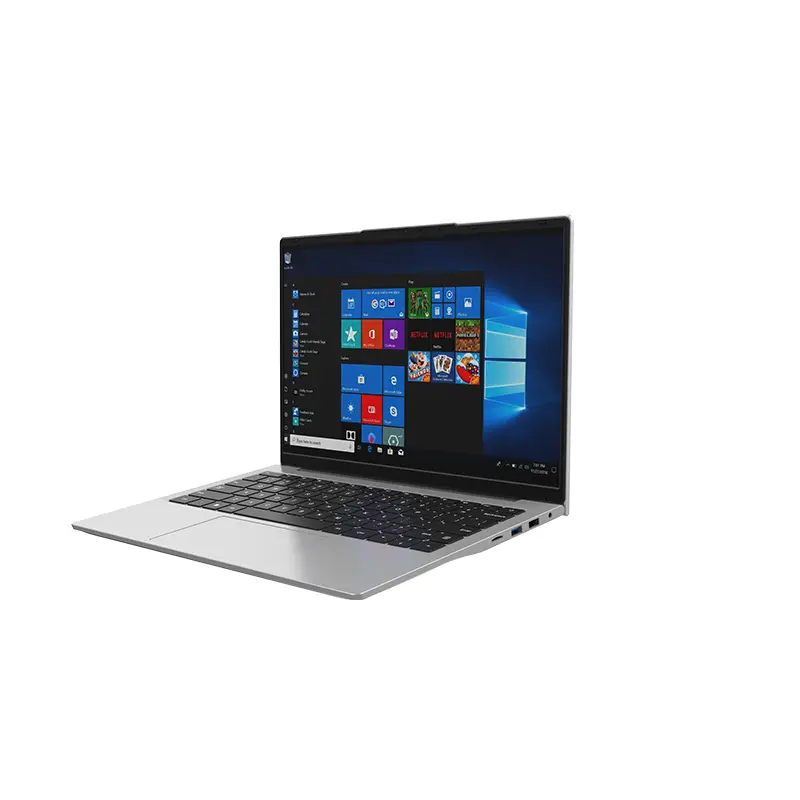
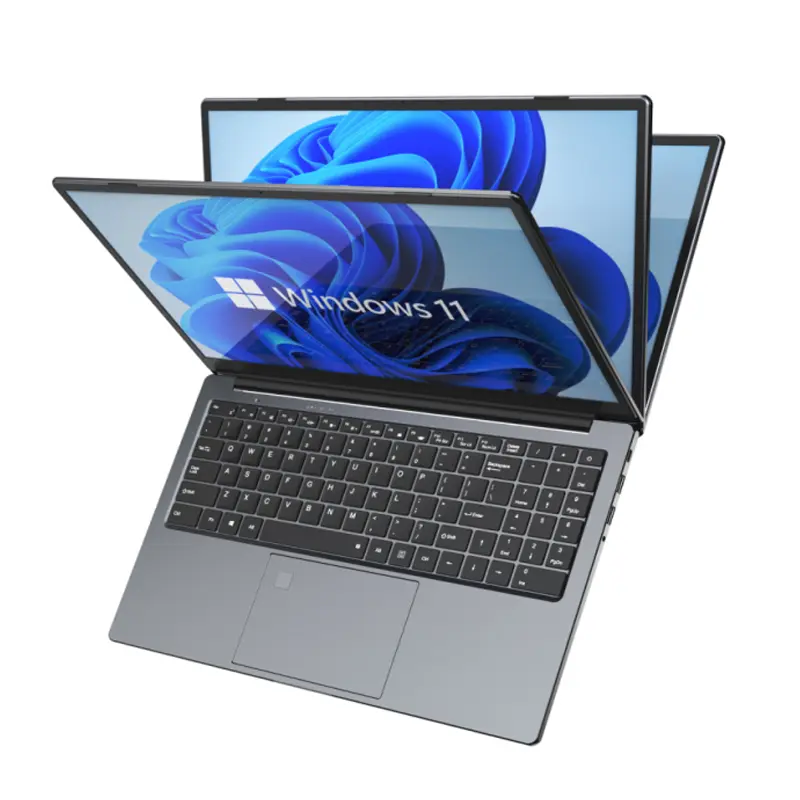
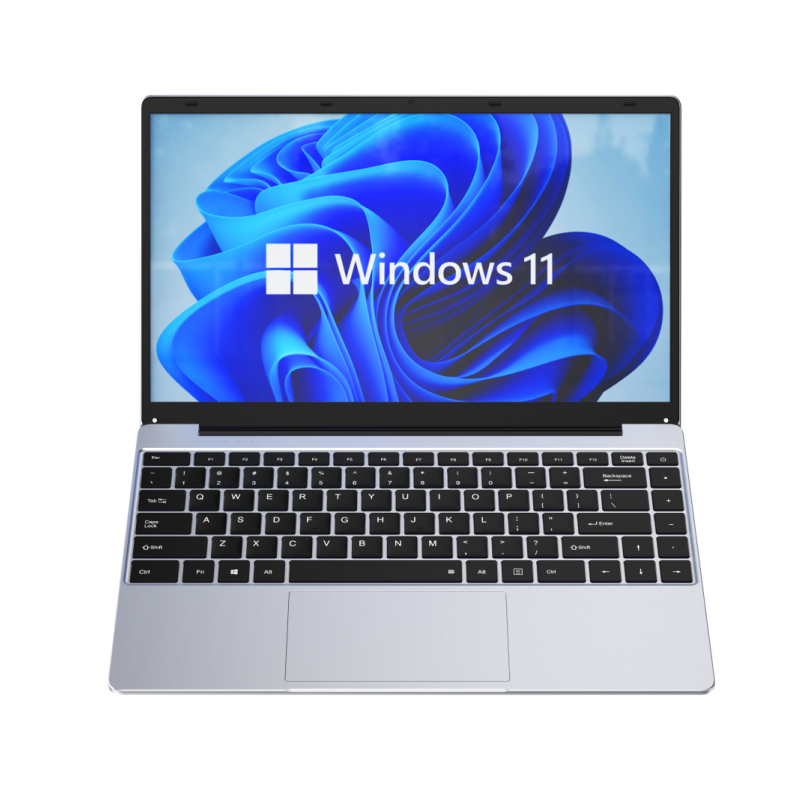
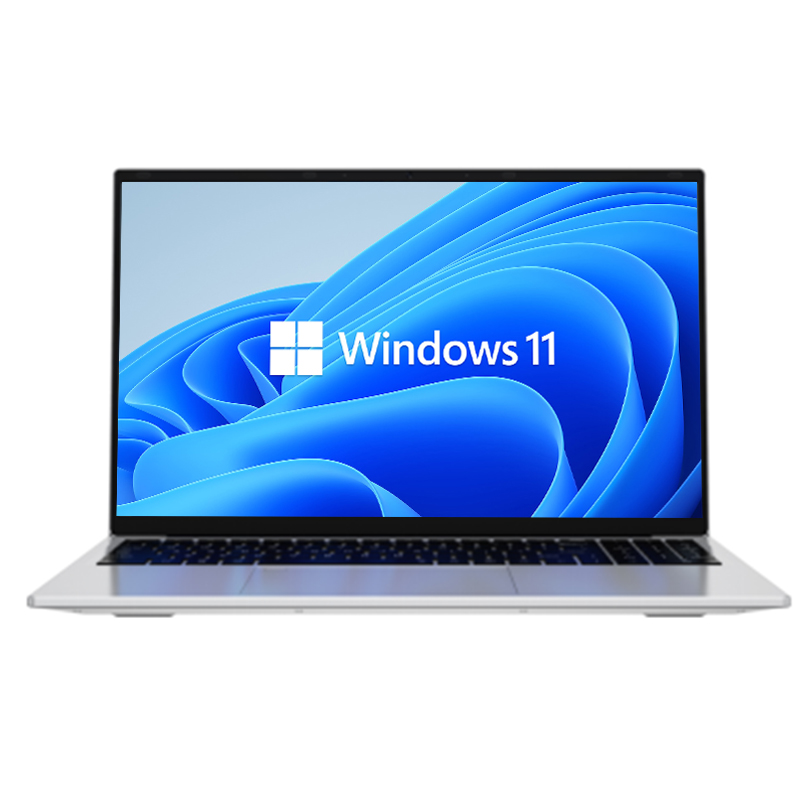
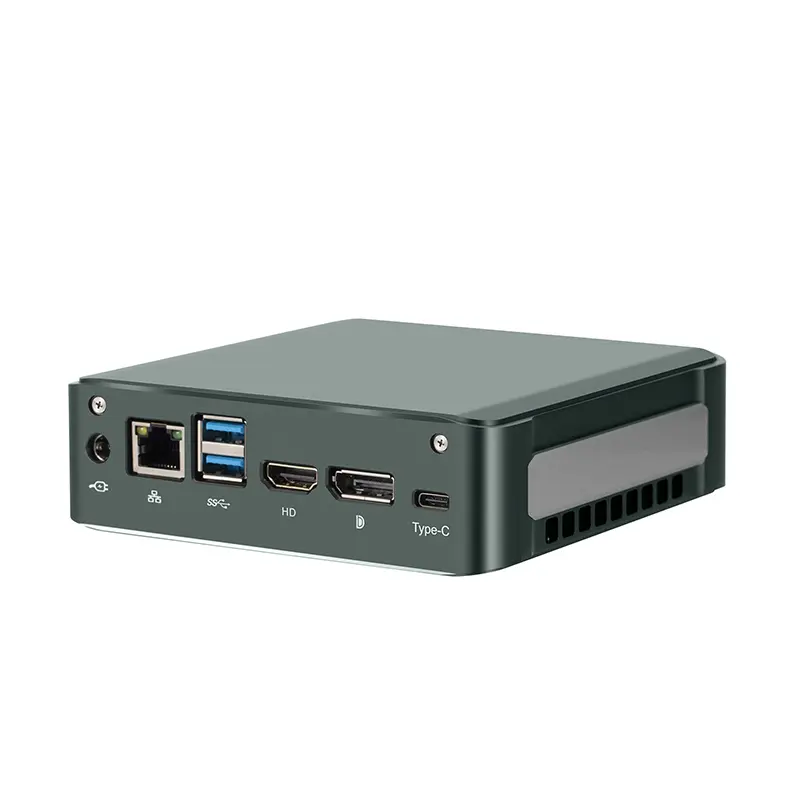
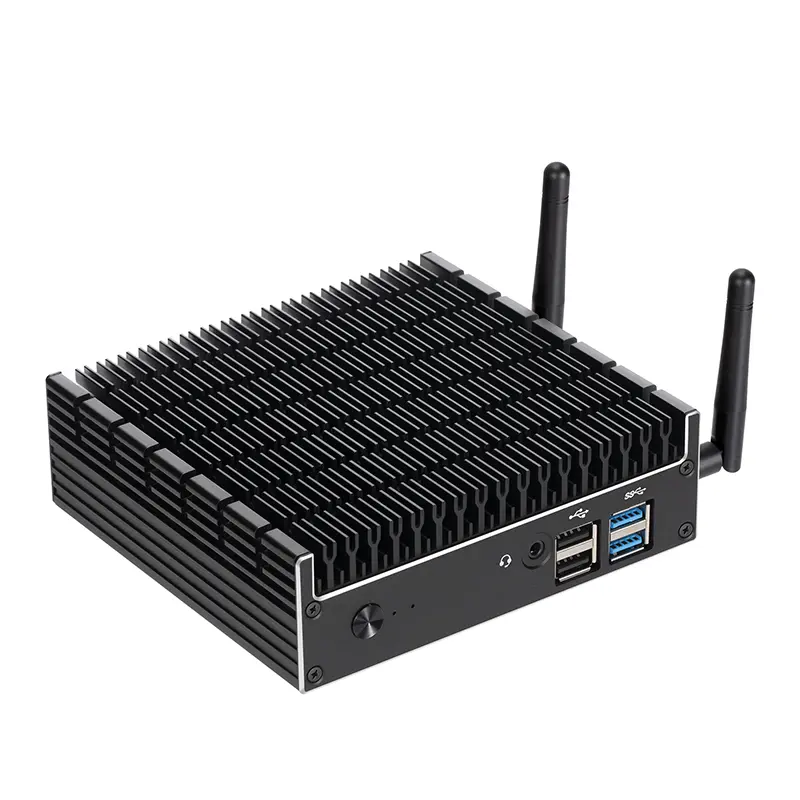
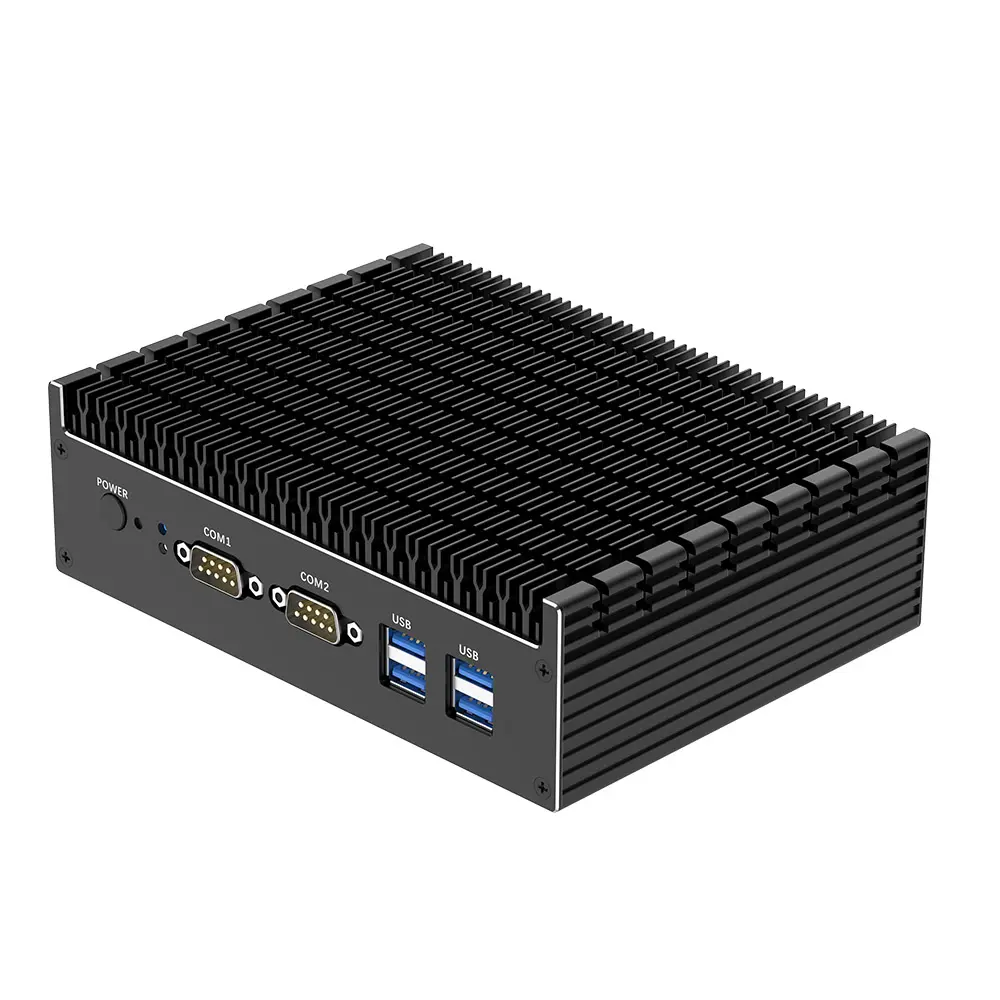
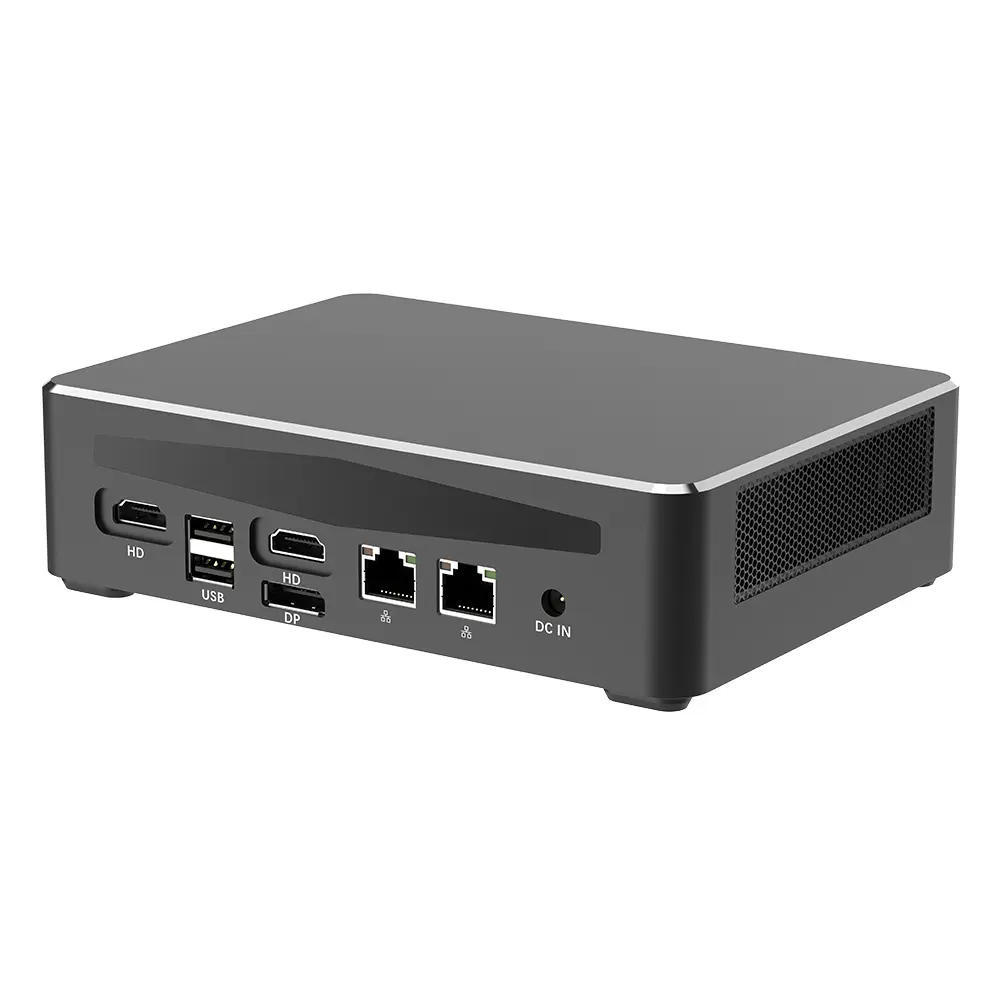
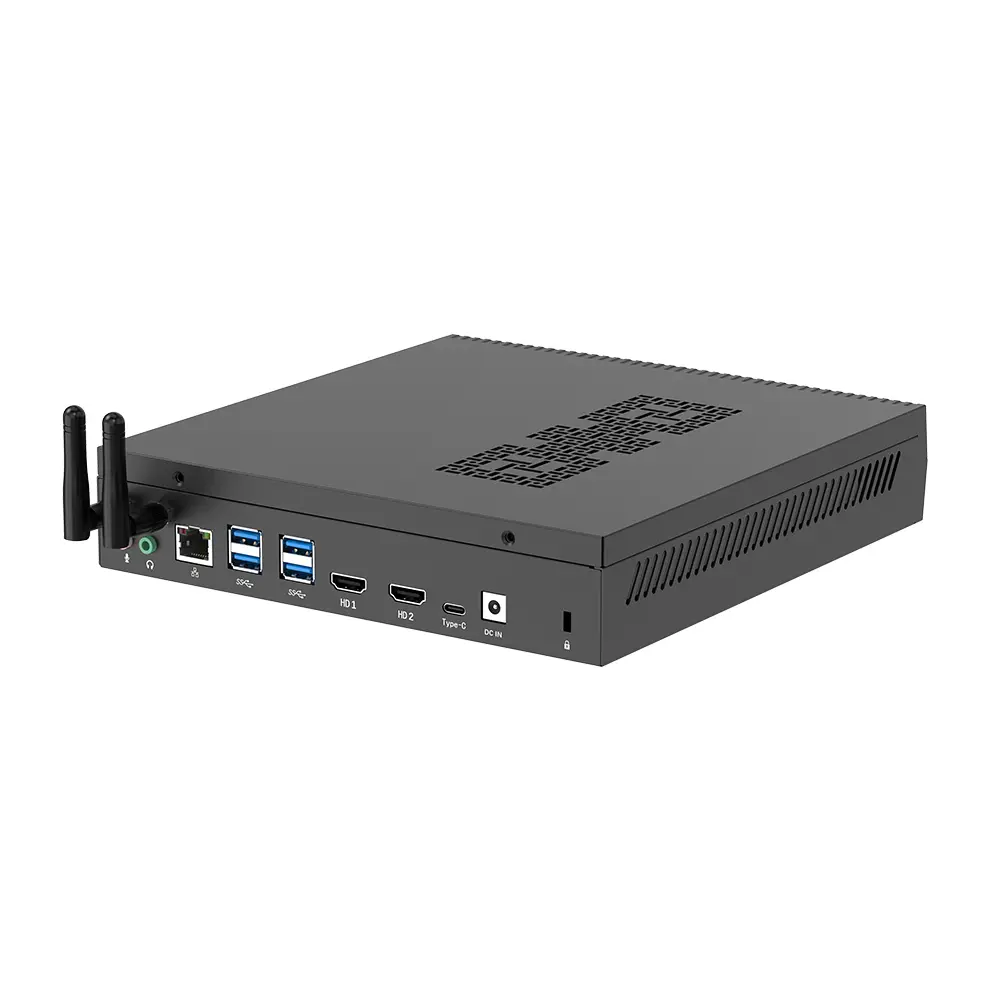
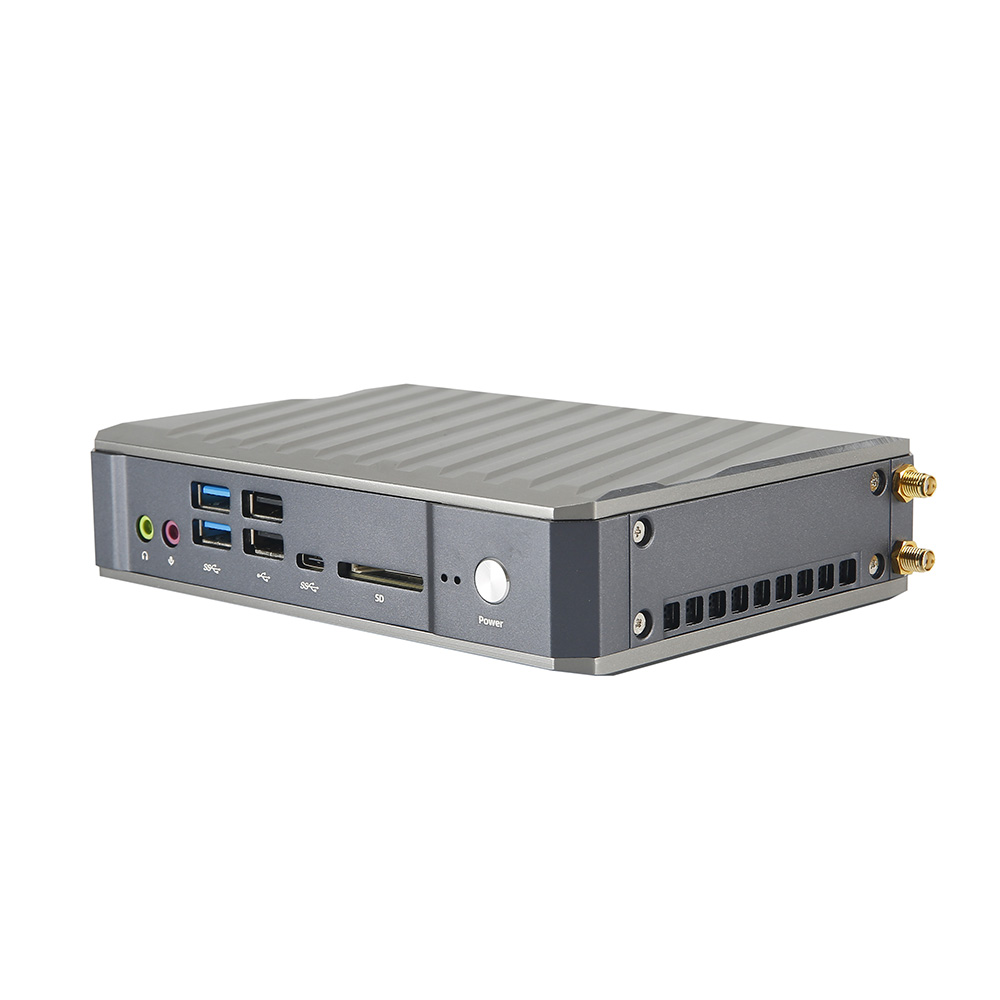
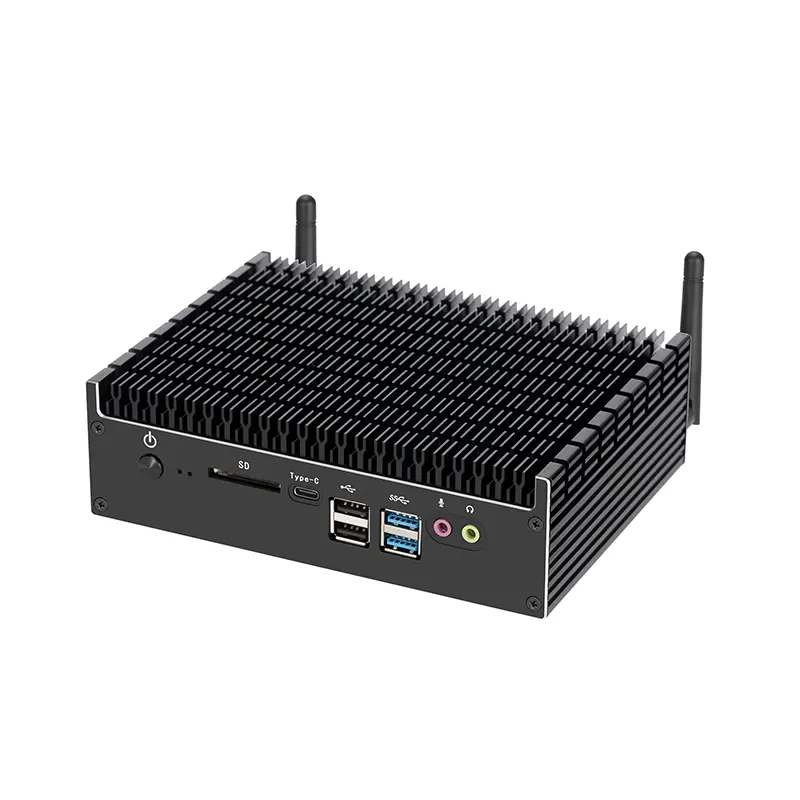
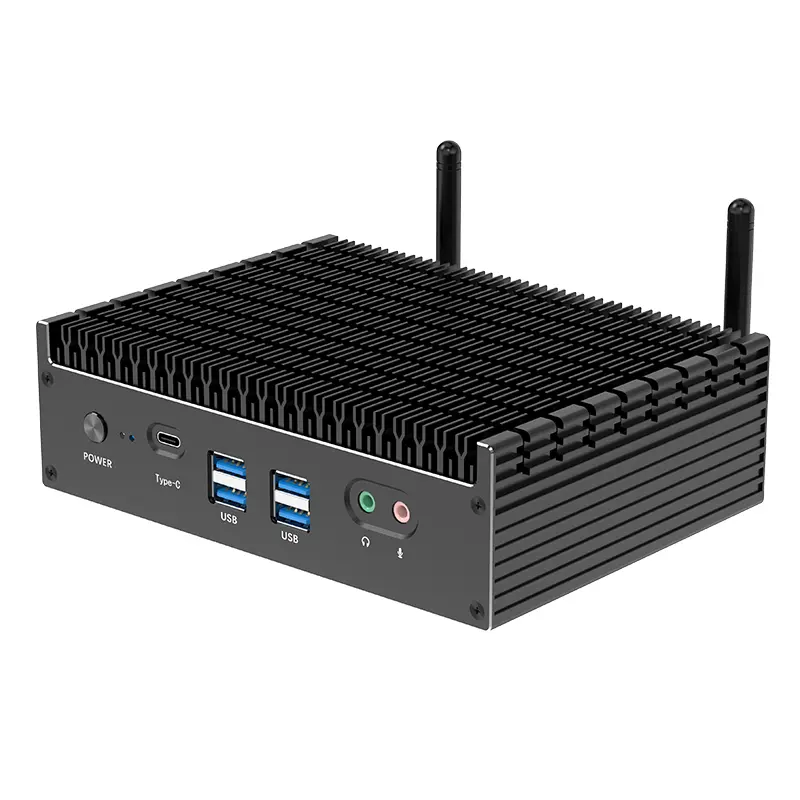
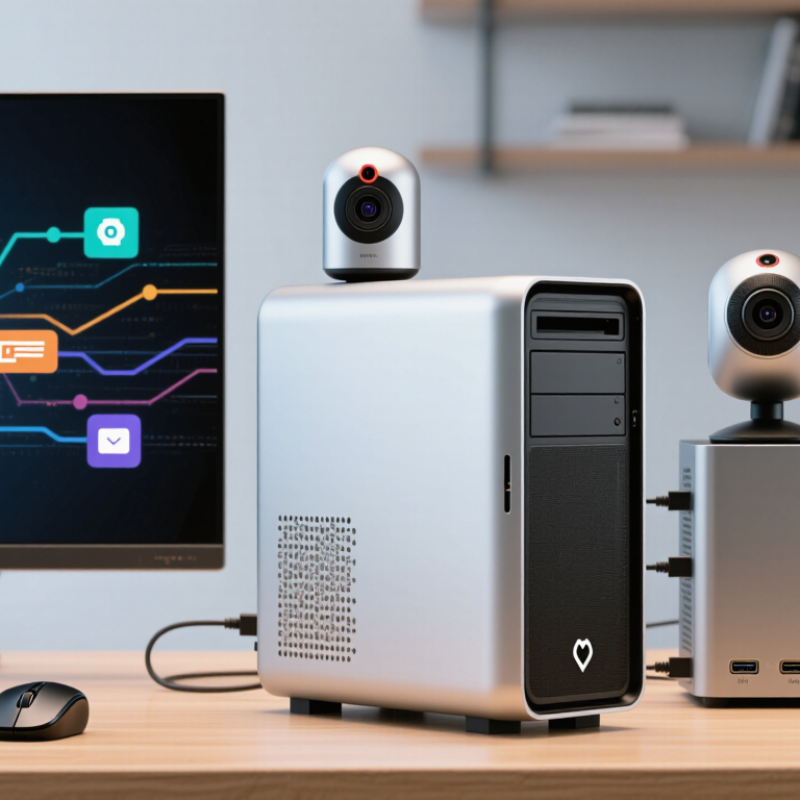
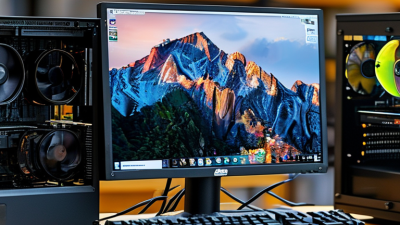
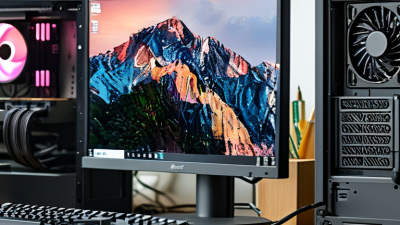
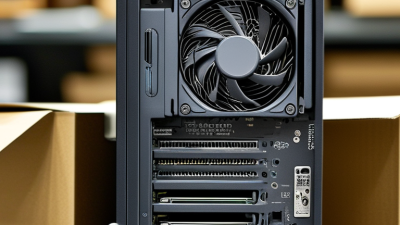
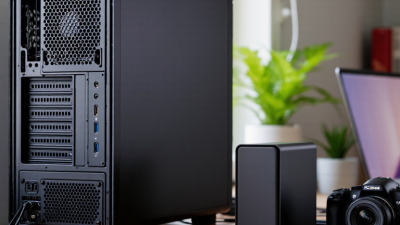
A Kleine Desktop Computer is a compact personal computer designed to deliver useful performance without occupying much physical space. It may sit behind a monitor, beside a keyboard, or inside a small home office shelf. Unlike a traditional tower, it usually combines a low-power processor, integrated graphics, memory, storage, cooling, and connectivity in a tightly arranged case.
The basic process remains familiar. The processor executes instructions, memory holds active tasks, and solid-state storage keeps applications and files available. A cooling fan or passive heat sink removes warmth from the system. Ports then connect displays, cameras, external drives, and network equipment. Small details matter here. A poorly placed USB port can become frustrating. Weak ventilation can quietly reduce performance.
Steve Jobs once said, “Design is not just what it looks like and feels like. Design is how it works.” That principle fits this category well. A Kleine Desktop Computer should not be judged by appearance alone. Its processor generation, upgrade options, operating system, noise level, and power consumption deserve equal attention. A tiny case can hide meaningful limitations. It can also deliver surprising value.
This guide examines what happens inside these computers and how their parts cooperate. It considers office work, streaming, light creative tasks, and everyday multitasking. Expectations should remain realistic. Not every compact computer replaces a powerful workstation. Some do less, but they may fit better into real rooms, real budgets, and real routines. That balance is the point.
A Kleine desktop computer is defined by volume, not by a processor label or operating system. In IDC’s PC Data framework, the category covers mini PCs with sub-1-litre enclosures. That is smaller than a typical office desktop. A unit may fit beside a monitor stand or behind a display. Its compact chassis usually combines laptop-style memory, storage, and cooling parts.
The computer still performs ordinary desktop tasks. It receives power, runs firmware, loads an operating system, and processes applications through its CPU and memory. However, the restricted space can limit cooling, ports, and upgrade options. I have found that a small enclosure feels efficient on a clean desk, but it can become warm during sustained workloads. That detail matters.
IDC’s Worldwide Quarterly Personal Computing Device Tracker recorded 262.7 million traditional PC shipments in 2024, showing the scale of the wider market. Industry reports from Gartner also continue to separate desktop, notebook, and smaller computing formats, because physical design affects demand and use. Yet the Kleine label is not a performance guarantee. Two sub-1-litre systems may differ sharply in memory capacity, storage speed, noise, and repairability. The measurement is clear. The experience is not.
A Kleine desktop computer is a compact system built around efficient hardware. Its processor usually consumes between 15 and 65 watts. Lower-wattage chips suit quiet office work, browsing, and media playback. Higher-wattage models handle coding, photo editing, and moderate multitasking more confidently. In practice, cooling matters as much as processor speed. A tiny case with poor airflow may throttle performance during long workloads.
Memory affects how smoothly applications run together. Eight gigabytes can manage basic tasks, but 16 gigabytes feels safer for modern work. Users handling virtual machines, large spreadsheets, or creative projects may need 32 gigabytes. RAM cannot replace a fast processor, though. I have seen compact systems slow down when background applications quietly consume available memory.
An NVMe SSD connects through a high-speed interface and offers quick startup, responsive file access, and shorter application loading times. Capacity still matters; a fast 256-gigabyte drive can become cramped quickly. A 1-terabyte option provides more practical working space. The computer’s 5-Gbps USB ports support external storage, keyboards, cameras, and network adapters. They are useful, but the advertised speed is not always the real transfer rate. Cable quality, device limits, and shared bandwidth can reduce performance. Ports also vary between models, so checking the technical specifications remains essential. Small hardware demands careful choices.
A Kleine desktop computer is a compact system designed for everyday computing in a small enclosure. IDC’s 2024 Worldwide Quarterly Personal Computing Device Tracker recorded 262.7 million traditional PC shipments globally. That volume reflects continuing demand for practical desktop systems, including space-saving designs.
It begins quietly. UEFI firmware checks memory, storage, processor status, and connected devices during power-on. It then reads the boot configuration and starts the operating system loader from the selected drive. Secure boot functions can verify approved startup code before control is transferred. The process usually takes seconds, but firmware settings can create confusing delays.
After loading, the operating system activates drivers for the display adapter, network controller, audio hardware, and input devices. Drivers act like translators between software commands and physical circuits. A missing driver may leave a working component almost useless. I have seen compact systems appear faulty when the real problem was an outdated network driver.
Application processing happens after these layers cooperate. The processor divides tasks among execution threads, while memory holds active instructions and data. Storage supplies files, and the graphics processor handles visual workloads when required. Compact cases often limit cooling space. Sustained heavy processing may therefore reduce clock speeds. This trade-off is easy to underestimate. SPEC’s workstation performance research also shows that benchmark results can change with thermal conditions, memory capacity, and workload type. Real-world testing should include several hours of use, not only a quick startup test.
A kleine desktop computer can provide surprisingly strong connectivity in a compact enclosure. Wi-Fi 6 has a theoretical maximum of 9.6 Gbps across compatible bands and devices. That figure is not a guaranteed single-device speed. Real performance depends on distance, walls, interference, router capacity, and network traffic.
For office work, a nearby access point may deliver smooth cloud access, video calls, and large file transfers. However, wireless speed can drop sharply behind concrete walls. A wired connection remains more predictable for backups or media editing. This distinction is easy to overlook.
The display paths deserve equal attention. A 4K display running at 60 Hz needs a suitable HDMI, DisplayPort, or USB-C connection. The port must support the required bandwidth and display mode. Not every USB-C port carries video. Some adapters also reduce refresh rate or color quality. Check the computer’s specifications and cable ratings before buying accessories. A short, certified cable usually creates fewer surprises. Still, specifications can feel incomplete. Manufacturers may list maximum output without explaining multi-monitor limits or shared bandwidth. A careful hands-on check should test 4K at 60 Hz, audio output, sleep recovery, and simultaneous wireless activity. Small details matter here.
The chart compares nominal data rates relevant to a compact desktop computer. Wi-Fi 6 can reach a theoretical aggregate rate of 9.6 Gbps, while uncompressed 4K at 60 Hz with 8-bit RGB color requires approximately 11.94 Gbps for active pixel data. Actual wireless throughput is lower because of distance, interference, protocol overhead, and network conditions.
What Is a Kleine Desktop Computer and How Does It Work?
A Kleine desktop computer is a compact system built for office tasks, browsing, media playback, and light creation. It usually combines a low-power processor, integrated graphics, memory, and storage in a small enclosure. Heat leaves through vents, a fan, or passive metal surfaces. In hands-on use, airflow matters more than the computer’s size suggests. A blocked vent can turn quiet work into noticeable fan noise.
Thermal performance affects speed and lifespan. During long video exports, the processor may reduce its clock rate to control heat. Power use also changes sharply between sleep, idle, and full load. ENERGY STAR methods examine these operating states, along with power-supply efficiency and automatic sleep behavior. These measurements help compare real consumption, not just maximum wattage. Still, energy labels cannot predict every user’s experience. Room temperature, dust, and software loads create differences.
Upgrade limits deserve careful attention. Many compact systems allow storage replacement, but memory may be soldered. Wireless modules and cooling parts can also have unusual sizes. I once assumed a small case would accept standard components; that assumption was wrong. Check service guides before buying.
Tips: Keep vents clear. Use a watt meter during typical tasks. Choose solid-state storage for lower heat and noise. Avoid placing the computer inside a closed cabinet. Leave some memory capacity unused if upgrades are uncertain.
| Dimension | Typical or Reference Data | How It Works | Practical Effect |
|---|---|---|---|
| Definition | Small-form-factor desktop computer, commonly designed for desk, display-mount, or embedded use. | A processor, memory, storage, power circuitry, cooling system, and I/O ports are integrated into a compact enclosure. | It occupies less space than a conventional tower but generally offers less internal expansion room. |
| Approximate enclosure volume | Ultra-compact systems are often below 1 liter; compact mini desktops commonly fall around 1–3 liters. | Smaller cases use tightly arranged components and external power adapters more frequently. | Useful for small desks, digital signage, reception areas, and light industrial or office installations. |
| Processor power class | Low-power mobile-class processors are often rated around 15–28 W; higher-performance compact desktop processors may be around 35–65 W. | The processor changes clock speed and voltage according to workload, temperature, and firmware power limits. | Lower power classes generally simplify cooling, while higher power classes can improve sustained performance. |
| Typical operating power | Approximately 10–65 W for the computer itself during normal workloads; displays and external devices are excluded. | Power rises with processor load, graphics activity, storage access, wireless communication, and connected peripherals. | A compact computer can use substantially less electricity than a high-performance tower for everyday office tasks. |
| Idle power behavior | Often approximately 5–20 W, depending on processor class, memory, storage, firmware settings, and attached devices. | Modern systems reduce voltage and clock frequency when applications are waiting for input. | Idle efficiency matters for computers used continuously for monitoring, kiosks, servers, or office work. |
| Sleep and off modes | Sleep power is generally a few watts or less; off-mode power is normally much lower, although wake features can increase it. | Sleep preserves system state in memory, while off mode removes power from most operating circuits. | Sleep provides faster recovery; off mode minimizes standby consumption but may disable network wake functions. |
| Thermal design | Usually uses a heatsink, heat pipe or vapor chamber, and a small fan; some low-power models use passive cooling. | Heat moves from the processor into the heatsink and is released through airflow or the enclosure surface. | Restricted vents, dust, or high ambient temperature can reduce sustained performance through thermal throttling. |
| Thermal throttling range | Many processors begin reducing performance near their manufacturer-defined thermal control point, commonly around 90–105 °C at the silicon junction. | Firmware lowers clock speed, voltage, or power when the temperature approaches the safe operating limit. | Short bursts may be fast, while long CPU or graphics workloads can run more slowly in a very small enclosure. |
| Ambient operating conditions | Typical consumer equipment is designed for room-temperature operation, commonly near 10–35 °C; the exact range is model-specific. | Cooling capacity depends on the difference between internal component temperature and surrounding air temperature. | High room temperature leaves less thermal headroom and can increase fan speed or reduce performance. |
| ENERGY STAR evaluation method | Computer efficiency testing evaluates defined operating states such as long idle, short idle, sleep, and off mode, with limits varying by computer category and configuration. | Measurements are taken under standardized conditions and combined with usage assumptions to estimate energy performance. | Certification results should be compared using the same category, configuration, and test version rather than by peak wattage alone. |
| Total Energy Consumption approach | Annual energy assessment commonly weights power in active, idle, sleep, and off states according to a prescribed duty cycle. | The method reflects that a computer may spend more time idle or asleep than under maximum load. | A system with modest peak performance but efficient idle and sleep behavior may have lower annual energy use. |
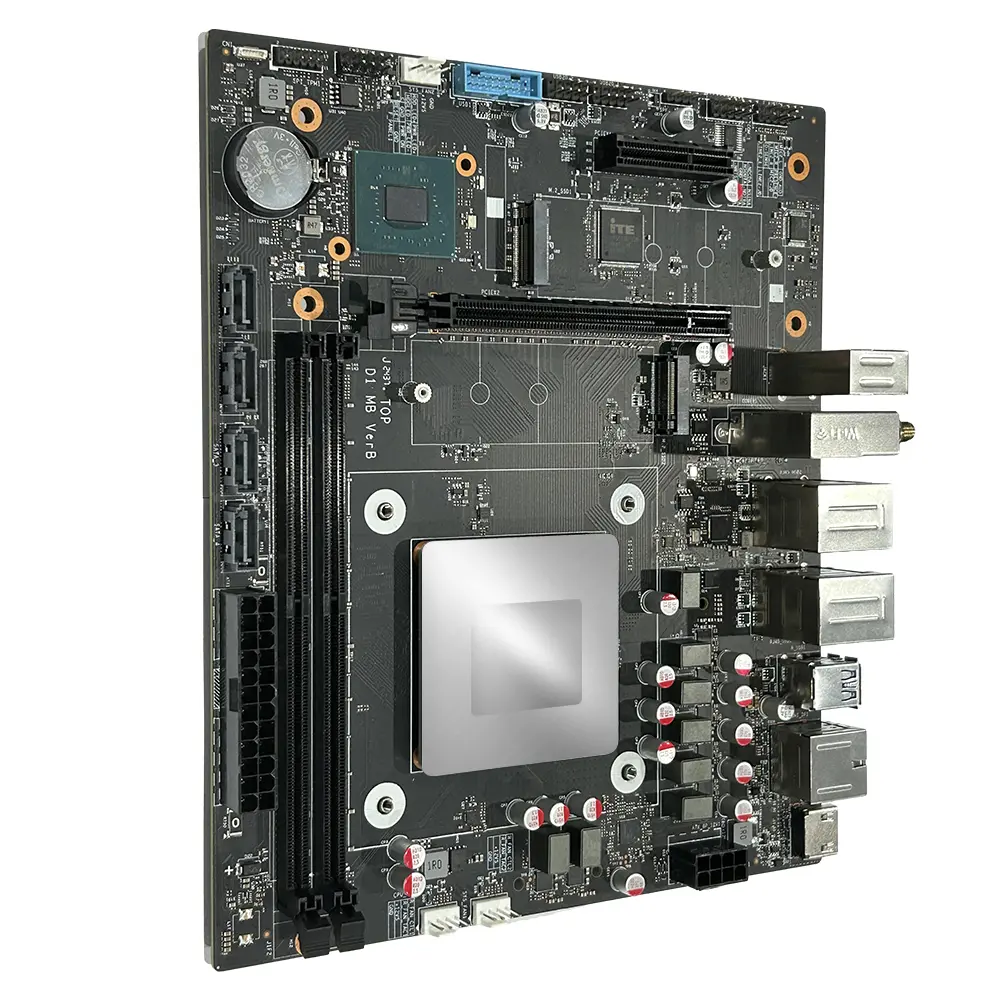
| Memory upgrade limits | Many mini desktops provide one or two SO-DIMM slots, while some systems use memory soldered directly to the motherboard. | SO-DIMM modules can be replaced or expanded only within the system's supported capacity, memory type, and speed. | Check the service manual before purchase; soldered memory generally cannot be upgraded. |
| Storage upgrade limits | Common options include one M.2 slot for solid-state storage and, in larger enclosures, an additional 2.5-inch drive bay. | Storage connects through interfaces such as PCI Express for NVMe drives or SATA for compatible drives. | Drive replacement is often easier than processor or graphics upgrades, but physical clearance and interface support must be verified. |
| Graphics capability | Most compact systems use integrated graphics; selected higher-power designs may include a dedicated mobile graphics processor. | Integrated graphics share system memory, while dedicated graphics use separate memory and add heat and power demand. | Integrated graphics are suitable for office work, video playback, and light creative tasks; demanding 3D work needs stronger cooling and expansion. |
| External connectivity | Common interfaces include USB, video output, wired networking, wireless networking, and audio; exact port counts vary. | External peripherals provide functionality that cannot fit inside the small enclosure. | Port selection is important because compact systems may offer fewer full-size connectors than tower desktops. |
| Power adapter | Many low-power models use an external adapter rated roughly 45–180 W, depending on the processor and graphics configuration. | Moving the power conversion outside the case reduces internal heat and saves enclosure space. | The adapter must match the required voltage, connector, polarity, and minimum power rating. |
| Suitable uses | Office productivity, web applications, media playback, point-of-sale systems, digital signage, education, thin-client operation, and home servers. | These workloads typically emphasize low power, small size, quiet operation, and reliable connectivity. | Compact computers are less suitable for sustained high-end rendering, advanced gaming, or workloads requiring multiple expansion cards. |
| Main upgrade constraints | Limited internal volume, soldered components, restricted cooling, proprietary mounting, and a lack of full-size expansion slots. | The enclosure and motherboard are optimized for a fixed thermal and electrical design envelope. | Choose memory, storage, networking, and processor performance carefully because later upgrades may be limited. |
| Maintenance practices | Keep ventilation openings clear, remove dust periodically, update firmware when appropriate, and avoid blocking the intake or exhaust. | Clean airflow allows the cooling system to transfer heat at its intended rate. | Good maintenance helps preserve performance, reduce fan noise, and extend component life. |

Data note: Values shown as typical ranges are general engineering reference values, not guarantees for every small-form-factor computer. Actual power, temperature, upgrade capacity, and ENERGY STAR eligibility depend on the exact configuration, firmware, operating system, and applicable test version.